Top FAQs
Bill Pay makes it easy to pay your bills to a business or even send money to another person from anywhere, on any device, anytime you like. You can view this step-by-step guide here or view this video that helps you understand how Bill Pay works.
Read more hereFrom the Payments page, click on Bill Pay to access additional features such as:
- Viewing confirmation numbers of payments
- Adding a new checking account to pay bills from
- More Pay a Person options: by check and electronic account payment
- Setting alerts on bills
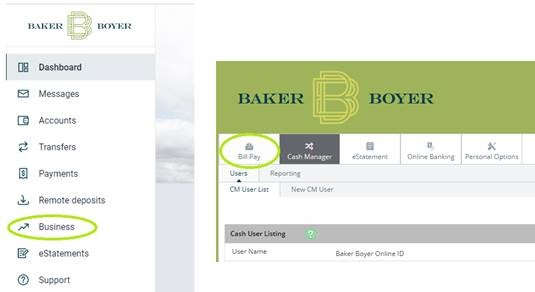
Special note for Business users! Click Business, then Bill Pay to access in your browser.
Read more hereYes, please endorse your check. Additionally, you need to write "Baker Boyer Mobile Deposit" on the back of your check. Your mobile deposit won't be received unless both are included.

Baker Boyer Routing Number is 123300153.
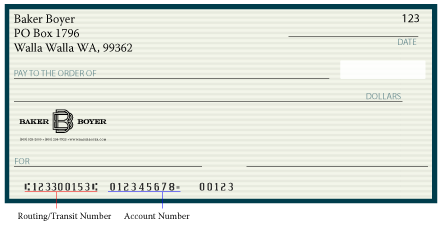
Your routing number and account number can be found on your checks, as shown in this illustration. You can also find your account number in Online Banking by logging in and viewing your account details.
Read more hereDirect Deposit is a free service that automatically deposits your paycheck into any Baker Boyer checking or savings account. Click here for directions and the enrollment form.
Read more hereBill Pay
Bill Pay makes it easy to pay your bills to a business or even send money to another person from anywhere, on any device, anytime you like. You can view this step-by-step guide here or view this video that helps you understand how Bill Pay works.
Read more hereFrom the Payments page, click on Bill Pay to access additional features such as:
- Viewing confirmation numbers of payments
- Adding a new checking account to pay bills from
- More Pay a Person options: by check and electronic account payment
- Setting alerts on bills
Special note for Business users! Click Business, then Bill Pay to access in your browser.
Read more hereYour full Bill Pay history (18 months) can be accessed from Payments by clicking Bill Pay.
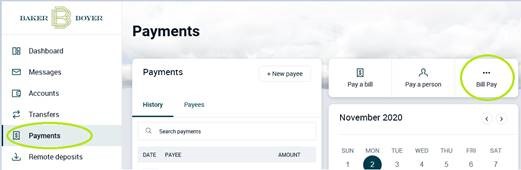
Read more herePersonal users click Payments in the left navigation. Then, on the Payments page, select Bill Pay on the upper right.
Business users click Business in the left navigation. Then, on the Business page, select Bill Pay at the top left.
Yes, there are additional options in Bill Pay to pay a person by check or electronic transfer using their banking information, in addition to sending payment via email.
From the Payments page, click on Bill Pay. Then choose the Pay a Person tab at the top to select your choice of delivery.
Special note for Business Users: First select Business, then Bill Pay. Next choose the Payees tab, and then choose Pay an Individual. For Payroll and advanced business payment options, please contact us for more information.
Read more hereCash Management
New users may be created by having an Admin user email the request to the Cash Management department (CMSupport@bakerboyer.com). Please include the name, email address, permissions to be granted, and the phone number of the new user to expedite the process.
Read more hereYou can find details on initiated batches from the ACH screen.
If the batch was initiated the same day, go to the Active tab and select the batch marked as Initiated to view the details. Once the batch has processed, it will move to the History tab, where you can review the batch details.
Read more hereBatches may not be able to be initiated for a few common reasons:
- Dual Control requirements: If your business uses Dual Control, your user may not have permission to initiate the batch until another user has placed it in Pending Approval status.
- Edits were made to a pending batch: If your business uses Dual Control and your user makes changes to a batch that is already in Pending Approval status, select Return to Ready. Another user will then need to place the batch back into Pending Approval before it can be initiated.
- The batch is not balanced: If the batch is not balanced, a red banner will appear when you open the Batch Details screen. The batch will need to be corrected before it can be initiated.
If it is before our cut-off time (generally, 3:30 PM PT) and the batch has been submitted on the same day, you can UNINITIATE the batch and then re-enter it with the correct information. If it’s after cut-off or the batch has been submitted on a previous day, contact the Bank for assistance. There may be a fee to make this correction on the Bank’s end. If uncertain on what options are available, contact CMSupport@bakerboyer.com as soon as possible. Certain correction options are time-sensitive.
Read more hereTo enable ACH Alerts for your business user, please refer to our ACH Incoming & Outgoing Alerts Guide for step-by-step instructions.
Read more here
Prenote ACH Entries are $0 transactions sent to verify an ACH Receiver’s routing number, account number & account type at another institution. This helps ensure the entries are sent to an open & active account. While prenotes are recommended, they are not required. Prenotes must be sent a minimum of three business days before the first “live” transaction processes to the account. This provides time for the receiving institution to return or send a correction notice if any account data needs to be updated.
Read more hereOur Online Banking accepts NACHA, CSV & TXT files as an uploaded or imported file. All changes to your file should be made in the software producing the file prior to upload or import. NACHA files should not be edited after creation.
Read more hereAll exceptions must be reviewed and decisioned between the hours of 6:30 AM & 10:30 AM on business days, when they occur.
Read more hereWhen the service is established, the business owner will elect whether unworked items will be automatically set to return or pay from the account. The system will automatically apply this election once the timeframe for working items expires.
Read more hereA Positive Pay exception is a check item that requires review because the information read on the check cannot be validated against the information your business uploaded to the system.
Read more hereOnce the file is in Successful status, information should be available within minutes. It is recommended to enter information online before check disbursement, as checks presented prior to upload will often process through the system as exceptions, even if data is uploaded later in the day.
Read more hereNo. Checks sent through our bill pay vendor will bypass the Positive Pay issued items file.
Read more hereAt this time, it is not a required service. However, we strongly recommend that all business owners add Positive Pay to their business accounts. It is one of the best ways to safeguard against fraud.
Read more herePositive Pay is a service Baker Boyer offers to its business clients to help them monitor their business accounts for signs of fraud. Check information provided by the business is compared to items being presented for payment. When the information on transactions matches, the item processes as normal. If there is a discrepancy, the item will not be negotiated.
Read more hereBusiness Online Banking
There are two different methods that can be used to set up two-factor authentication for your business online banking users:
- Authenticator App – Any free authenticator app (e.g., Google Authenticator, Microsoft Authenticator) is supported and can be used to enable this enhanced security. This method is preferred for clients that do not have any ACH Origination or Online Wire Transfer permissions.
- FIDO Security Key – For those who prefer added physical security, FIDO Security Keys are supported and can be purchased online or can be provided by the Cash Management department when your business users access ACH Origination or Online Wire Transfer permissions.
Click here to learn more about two factor authentication. To read our step by step guide on how to get set up, click the button below.
Read more hereChecks
Check orders can be placed here through our check ordering partner Harland Clark.
Please note: If this is your first time ordering checks for a new account, you’ll need to contact us directly. You can speak with a Baker Boyer representative by visiting one of our branches or call us at (509) 525-2000.
Read more hereeStatements
eStatements allows you to receive your statements and notices electronically through Online Banking. This feature reduces the risk of your account information being lost or stolen in the mail.
Read more hereYou will need Online Banking to access eStatements. If you do not currently have access to Online Banking, please contact us at 509-525-2000.
From your Online Banking profile, you can access eStatements by clicking on the eStatements option in the menu on the left. If it is your first time accessing eStatements, you will be prompted to register by inputting your email address.
Read more here- eStatements are viewable at easy-to-download PDF documents.
- You will need Adobe Reader to view them. Most browsers should already have this service enabled.
You may access up to 7 years of eStatements history.
Debit Card
Clients can change the status of their debit card by calling the bank and speaking with a representative, by using our 24-Hour Banking service, by visiting an ATM, or by using our Online Banking platform solution. Our Online Banking platform solution is accessible via mobile app or web browser.
Read more hereYou can create alerts based on merchant types, transaction types, and spending limits. Alerts based on location only applies to international transactions. Baker Boyer asks clients to contact us before traveling internationally or making international transactions. To protect our clients while traveling and making purchases, individual countries are opened for authorizations instead of a blanket authorization. If you have questions, please contact Online Banking.
If you would like to receive a notification for each transaction on the card, toggle the “Protection” options on. Notifications will be sent out based on the options selected in the “Notifications” settings.
Read more hereVisit the Visa site to learn how to receive text or email alerts on qualified transactions with your Visa card. Purchase Alerts can help keep your accounts secure by empowering you to catch fraud.
Read more hereYes. However, to minimize the risk of overseas fraud, international charges may be restricted without prior authorization. Therefore, if you plan a trip outside the U.S., please submit a travel notice online under the "Card Management" section in Online Banking or contact us in advance to ensure you have access to your funds.
Read more hereIf your card is lost, compromised, or you suspect it to be stolen, don’t hesitate—please contact us immediately in person or by phone.
If outside of regular business hours, please call the following number to report a lost debit card: 855-293-2456 (within US) and 206-389-5200 (outside US).
Read more hereYou have the option to block all transactions or receive notifications when transactions are attempted by the merchant types seen below:
| Type | Examples |
| Age Restricted | Liquor stores, smoke shops, casinos, adult stores, etc. |
| Department Store | Clothing, accessories, office supplies, electronics, etc. |
| Entertainment | Amusement parks, movie theaters, arcades, etc. |
| Gas Station | Fuel dispensers, warehouse club gas, etc. |
| Grocery | Supermarkets, bakeries, butchers, etc. |
| Household | Utilities, contracted services such as electricians, plumbers, A/C repair, etc. |
| Personal Care | Drug stores, pharmacies, health professionals, etc. |
| Restaurant | Diners, fast-food, cafeterias, etc. |
| Travel | Airlines, car rentals, hotels, etc. |
| Other | Purchases at other merchants |
You can create alerts based on individual transactions and on monthly transaction limits. Baker Boyer debit cards have a default daily purchase limit of $2,500.00. If you need custom or temporary limit adjustments, please contact Online Banking.
| Alert Type | Definition |
| Spending Limit | Transactions over this amount will be blocked and an alert will be sent to the user. |
| Spending Alert | Transactions over this amount will be blocked and an alert will be sent to the user. |
| Monthly Spending Limit | Transactions that will bring the user's monthly spending over this amount will be blocked and an alert will be sent. |
| Monthly Spending Alert | Transactions that would bring the user's monthly spending over this amount will send an alert but will not be blocked. |
You have the option to block all transactions or receive notifications when these types of transactions are attempted:
| Type | Examples |
| ATM | Bank ATMs, vendor ATMs, cash advances, etc. |
| eCommerce | Online bill payment, online shopping, etc. |
| In Store | Department stores, pharmacies, other retail stores, etc. |
| Mail/Phone Order | Catalog shopping, travel agent payments, etc. |
| Recurring | Automated bill pay, monthly expense payments, etc. |
| Other | Other cases outside of standard types. |
Visit the Federal Trade Commission for an informative website to help if you or someone you know has been a victim of identity theft.
Read more hereOnline Banking
Follow our step-by-step Viewing Account Numbers and Details guide or use the instructions below to learn how to access your account numbers and associated details within online banking.
Sign in to Baker Boyer Online Banking and select the account you want to view from the dashboard. You can also select Accounts from the left-hand menu and choose the appropriate account.
On a desktop browser, account information is displayed in the Details panel on the right side of the screen. In the mobile app, scroll to the bottom of the account screen to find the Details section.
Depending on the account, you may be able to view information such as:
- Account number
- Ownership details
- Recent account activity
When using Online Banking in a desktop browser, select the account dropdown at the top of the account screen. You can then choose another account without returning to the dashboard.
In the mobile app, return to the Accounts screen and select the account you want to view.
Read more hereWhen it comes to security, the Baker Boyer Mobile app has you covered. That’s because it included Advanced Card Controls that put you in charge of who uses your card — and how they use it. And it’s as easy as a tap on your phone.
With Advanced Card Controls, you can:
- Turn your card on and off if it’s lost, stolen or being misused
- Get instant alerts when your card is used
- Set dollar limits to keep spending in check
- Prevent transactions that don’t match your settings
It’s just another way the mobile banking app helps you safely and securely manage your money.
Here’s how to set up Advanced Card Controls on the Baker Boyer Mobile app:
- Go to the mobile banking app dashboard and select “ Accounts,” then select the appropriate account
- Go to “ Card Management” and choose a card
- Finally, tap “ Alerts and Protection” and choose the controls you would like to apply to that card.
You can follow our step-by-step Customizing Your Access Guide, or use the instructions below to personalize your Online Banking dashboard, profile, and account settings.
To customize your dashboard, select the ellipsis (…) next to your Accounts section. From the menu, you can:
- Add or link accounts
- Choose Compact, Expanded, or Totals to change how your accounts are displayed
- Select Organize Dashboard to customize the cards shown below your accounts
After selecting Organize Dashboard, drag the cards into your preferred order, select X to remove a card, or select + Add a card to add another feature. When finished, select Done to save your changes.
To customize your profile, select the profile icon in the upper-right corner and choose Profile. Select the pencil icon to update your profile picture, preferred name, or contact information.
To customize how an account is displayed, select Baker Boyer from your settings and choose the account you want to update. You can:
- Turn account display options on or off
- Choose whether balances, activity, and transactions are shown
- Select Rename to give the account a personalized name
- Select + Add alert to create balance or transaction alerts
For more detailed instructions on creating alerts, please view our Account Alerts instructional guide.
Read more hereThe first time you log in to Online Banking -- whether online or with the App -- you will need to set up “Two-Factor Authentication,” which will require you have ready both an email and a phone number. To learn how simple this can be, please watch this video or follow the steps in the brief visual guide below.
Read more here
If you forgot your username or password, you can follow our step-by-step Username or Password Reset Guide, or use the instructions below to complete the process.
1. Select Forgot? beneath the Username or Password field on the Online Banking login screen.
2. You will be asked to verify your identity using one of the following options:
- Enter your username and email address.
- Select Try another way and enter your Social Security number or Tax Identification Number, along with an account number associated with your Online Banking profile.
3. Follow the prompts to receive a password reset link by email or text. You may also be asked to enter a verification code using your previously selected security method, such as an authenticator app, FIDO token, text message, or phone call. If you do not receive a code, select Resend or Try another way.
4. After your identity is verified, create and confirm your new password. Your password must:
- Be between 10 and 25 characters
- Include at least one uppercase letter and one lowercase letter
- Include at least one number
- Include at least one special character: "+ _ % @ ! $ * ~"
- Not contain spaces
- Not contain or match your user ID
- Not match any of your previous three passwords
5. To change your username or password after signing in, select your profile icon, then go to Settings, select Security, and choose Edit next to your username or password.
If your information has changed or Online Banking is unable to verify your identity, please call us at (509) 525-2000. Bankers are available weekdays from 8 a.m. to 5 p.m.
Read more here1. From the Menu located on the left, select Accounts.
2. Hit the + Button to add.

3. Select Link an Account. This will open a new page.

4. Hit Next to proceed.

5. Type in the name of your other financial institution or select it from the “Most Commonly Used” list, if available.

6. Hit next.
7. Select your preferred method for an Authorization Code (Text Message or Phone Call).
8. Enter the code and hit Submit.
9. Enter the username and password you use to access the other Financial Institution’s accounts online. If this Financial Institution requires you to authenticate as well, follow the steps to confirm your identity.

10. Agree to the terms and conditions.
11. Verify you received confirmation that adding the new account was successful. You should now see the account within your Baker Boyer Online Banking.

- Online Banking can be accessed by using a web browser or the mobile app. When using a web browser always make sure you are using the most current version of the browser.
- Online Banking can be accessed by navigating to www.bakerboyer.com and clicking on the green Online Banking Login button in the upper right of the toolbar.
If you do not have a Online Banking profile, please contact the Bank. One of our Customer Service Representatives will be happy to assist you between the hours of 9 am and 5 pm on weekdays at (509) 525-2000.
Read more hereSetting up Account Alerts will ensure you receive a notification for a large dollar transaction, low balance, or other important activity. You can also set alerts for withdrawals and balances. Alerts are set per account. Please view this step-by-step guide to get started with Account Alerts.
Step-by-Step Visual Guide
In this example, we are setting an alert for deposits over $599. You can also set alerts for withdrawals and balances. Alerts are set per account.
Step 1: Click on the Account you would like to set an Alert for.

Step 2: Click Alert preferences

Step 3: Click on Transaction (for this example, setting up a deposit Alert)

Step 4: Click Add alert

Step 5: Complete the screen, including transaction type, dollar amount, and notification preferences. When finished, click the Add alert button at the bottom of the screen.

Step 6: Verify the Alert preference is set up as you intended.

Step 7 (if needed): If you decide you want to remove or change the Alert, click 'Edit' to the right of the Alert in the illustration above. Then you can either make changes to the Alert and Save or click the trash can symbol to Delete.

In the Baker Boyer Online Banking app, you can register your multiple online banking IDs and switch between profiles with the press of a button. No more signing in and out with different passwords.
Follow these steps to add additional accounts:
- Step 1: Login to the Baker Boyer Online Banking App and open the main menu (the three lines in the top left).
- Step 2: Open the profile menu by selecting the arrow next to your account name at the bottom of the screen.
- Step 3: Select “Add profile” or “Switch profiles”. The app will invite you to login with the other profile.
- Step 4: After you have logged into the second profile, you will be able to switch between profiles. This can be done on the login screen or inside the profile.
In many cases, Online Banking access issues can be resolved by trying a few simple browser troubleshooting steps:
1. Close and reopen your browser.
2. Try a different supported browser, such as Google Chrome, Microsoft Edge, or Safari.
3. Make sure your browser is updated to the most current version. Beta browser versions are not supported.
4. Clear your browser cache and cookies.
- To clear your cache and cookies, open your browser settings and look for History, Privacy, or Clear browsing data. Select Cookies and other site data and Cached images and files, then clear data for All time. Once complete, close and reopen your browser. For visual instructions, please view our step-by-step guide.
5. Verify that cookies are enabled and that cross-site tracking is allowed.
- To verify cookies are enabled, go to your browser’s privacy or cookie settings and make sure cookies are allowed. In Safari, you may also need to turn off Prevent cross-site tracking.
If these steps do not resolve the issue, please contact Baker Boyer at (509) 525-2000. For issues related to your device, browser, or internet connection, you may also need to contact your local computer repair technician or internet service provider.
Read more hereTwo-factor authentication is an advanced method of confirming your identity by using a combination of factors. For example, something you know such as a User ID and password, and a randomly generated, constantly-refreshing code. Read more to learn more about the various accepted two-factor authentication methods.
Read more hereThe Baker Boyer Mobile App can be downloaded from Apple Store or Google Play. Search for "Baker Boyer".
Read more hereYou can navigate to the Settings Options in either the top right-hand corner or bottom left-hand corner of the screen. Select Baker Boyer from the Accounts section and pick the account you would like the alert setup for. You may custom alerts notifying you when your balance changes, when deposits arrive or when specific check numbers are received.
Additional alerts for bills can be managed within Payments by clicking Bill Pay.
Read more hereGeneral Banking
To protect your sensitive financial information, Baker Boyer uses encryption for certain emails. If you receive a secure message, it contains confidential data such as account details, forms, or private communications that require extra protection.
Here is how to open a secure encrypted email from Baker Boyer:
1. Open the email from Baker Boyer.
- Note: The subject line will likely include the words "Secure Message" or "Encrypted Email".

2. Click on the blue box titled "Read the message" to start the authentication process.

3. After clicking on "Read the message" you will be prompted to sign in using a one-time-passcode. Check your email inbox (keeping the original message open) to view your one-time-passcode used to unlock the secure encrypted email.
- Note: the one-time-passcode will expire within 15 minutes.


4. Navigate back to your email inbox (while keeping your original message open) and open the new email from Microsoft to view your one-time-passcode.

5. Copy the passcode and enter the code into the original message, and finally click continue.


6. You will now be able to view your secure encrypted email.

Yes, all client information is secure and confidential. Baker Boyer protects your personal information from unauthorized access and use through security measures that comply with federal law, including computer safeguards and secured files and buildings.
Baker Boyer does not share personal information with affiliates for everyday business purposes, does not share information about your creditworthiness with affiliates, and does not share personal information with nonaffiliates so they can market to you. To learn more, please view our Privacy Notice.
Read more herePlease visit our Community Impact page to learn more about how qualifying non-profit organizations may apply for charitable gifts or sponsorships.
Read more hereDirect Deposit is a free service that automatically deposits your paycheck into any Baker Boyer checking or savings account. Click here for directions and the enrollment form.
Read more hereBaker Boyer Routing Number is 123300153.
Your routing number and account number can be found on your checks, as shown in this illustration. You can also find your account number in Online Banking by logging in and viewing your account details.
Read more hereMobile Deposit
Yes. You may enroll as many checking or savings accounts as you like for Mobile Deposit.
Read more hereYou can only submit one check per deposit at a time. However, you may make additional deposits during the same mobile banking session by simply tapping New Deposit once you have confirmation that your previous deposit has been received.
To be eligible for Mobile Deposit, you'll need to meet the following requirements:
- Active Online Banking profile
- At least 90 days as a customer
- No returned deposits or overdrafts within the last 90 days
Once you’ve met the eligibility criteria, follow these simple steps to start using Mobile Deposit through the Baker Boyer Mobile App:
1. An active Online Banking profile
Mobile Deposit is available exclusively to customers with an active Online Banking account. If you haven't enrolled yet or need help accessing your profile, we are here to help. Call us at (509) 525-2000 or head into one of our branches to get set up with online banking.
2. Enroll in Mobile Deposit
Enrollment in Mobile Deposit is required before you can begin using the feature. You can enroll in one of two ways:
- Send a secure message through Online Banking using the "Conversations Feature".
- Call us at (509) 525-2000, and a representative can enroll you over the phone.
3. Install the latest Baker Boyer Mobile App
Ensure that you have the most up-to-date version of our Mobile Banking App installed on your device. The app is available for download from both the Apple App Store and the Google Play Store. Regular updates help ensure you have the latest features and security enhancements.
4. Use a supported mobile operating system
To ensure the best performance and compatibility, your mobile device must be running a currently supported version of either Apple iOS or Android OS. Outdated systems may limit app functionality or prevent access to Mobile Deposit features.
Read more hereNo. We will create an electronic deposit slip to post the deposit to your account. You will only need to take a picture of the front and back of the check being deposited.
Read more herePlease verify that your deposit was accepted and shows up in your account before discarding.
Read more hereMobile Deposits are subject to verification and are typically processed the same business day. If the deposit is made after 4:30pm, it will be processed the next business day. Other reasons your deposits aren’t accessible right away may be due to failing verifications such as missing required endorsements or exceeding the deposit limit requirements.
Read more hereConsumer Mobile Deposit limits:
- 10 checks per day; and 20 checks per month
- $5,000 per day; and $10,000 per month
- Deposits completed within these limits will receive immediate credit. Deposits exceeding these limits will be subject to verification.
Micro-Business Mobile Deposit limits:
- 15 checks per day; and 60 checks per month
- $5,000 per day; and $10,000 per month
- Deposits completed within these limits will receive immediate credit. Deposits exceeding these limits will be subject to verification.
Yes, please endorse your check. Additionally, you need to write "Baker Boyer Mobile Deposit" on the back of your check. Your mobile deposit won't be received unless both are included.
You will be notified via email from info@bakerboyer.com that your mobile deposit has been declined. There will be instructions in the email with possible reasons why the deposit was declined and who to reach out to for assistance.
Read more hereSome business size checks (the long ones) do not work with Mobile Deposit. The following examples are types of payments/checks which CANNOT be deposited through mobile deposit:
- Any item that is stamped "non-negotiable," "void," or any other word or phrase indicating that the item is not valid
- Any item that appears to contain altered information
- Any item issued by a financial institution in a foreign country
- Any item that is incomplete or contains incomplete information
- Any item written off the deposit account
- Any item that is post-dated or dated over six (6) months ago
- Any Third- Party check (made payable to another party and then endorsed to you by that party)
- Any item that has been previously negotiated or deposited into any account
Mobile Deposits will generally be made available to you the same business day when a deposit is made by 4:30 pm (PST). Any deposit made after 4:30 pm (PST) will be deposited the next business day. If you make a deposit after 4:30 pm on Friday through Sunday, those deposits will be deposited on the following Monday with the exception of bank holidays that fall on Monday. In that case, deposits will be made on the following Tuesday.
Read more hereMortgage
Your payment could have changed for any combination of the following reasons: Your home has recently been re-assessed and the value has changed from previous years; the community in which you live increased property taxes; your homeowner’s insurance premium increased or you increased the coverage on your property. Other factors such as Adjustable Rate Mortgage changes or other changes in services will create an entirely new monthly payment now or at a separate date in the future. Read these Commonly Asked Questions for more information.
Read more hereIn most cases, you can receive a home loan preapproval the same day or within 24 hours after submitting the required financial information and documentation.
Read more hereThe documents needed may vary based on your financial situation, but gathering the following information can help keep your application moving:
Property information
- A fully signed purchase and sale agreement, including any amendments or counteroffers
Employment and income
- Names and addresses of all employers from the past two years
- W-2 forms from the past two years and your most recent paystub
- If self-employed, personal and business federal tax returns with all schedules from the past two years, plus a year-to-date profit and loss statement
- Documentation for any Social Security, disability, pension, child support, or alimony income you choose to include
Assets and accounts
- Official bank statements from the past two months for accounts being used for the down payment or closing costs
- Recent statements for stocks, bonds, certificates of deposit, and other investments
- Life insurance policy information if its cash value will be used toward the down payment
Liabilities and credit history
- A complete list of outstanding debts, including loans, student loans, credit cards, and other balances
- Additional documentation for any significant credit concerns within the past seven years, such as bankruptcy, foreclosure, repossession, or default
Every borrower’s situation is different, so not every item may apply. Your Baker Boyer home loan specialist will let you know if any additional information is needed.
For questions or additional assistance, please contact our Consumer Lending team at CLC@bakerboyer.com or 509-525-2000.
Read more hereAfter you apply for a loan, Baker Boyer may request your credit report from one or more of the major credit bureaus. These bureaus may then share certain information with other financial institutions, which can lead to unsolicited loan offers or marketing calls. This practice is often referred to as trigger marketing.
To help reduce these calls and offers, you can:
- Visit OptOutPrescreen.com or call 1-888-567-8688 to opt out of prescreened credit offers for five years or permanently.
- Register your phone number with the National Do Not Call Registry at DoNotCall.gov or by calling 1-888-382-1222.
- Have each borrower opt out separately if you share a credit account with a spouse, partner, or co-borrower.
Baker Boyer does not initiate these solicitations and is unable to stop them directly. Read this in-depth article that explains why you may receive solicitation calls after a credit check.
Read more hereYes. Baker Boyer has a dedicated team of loan servicers in-house which means the process stays local, and you can reach out to us for any questions about your loan at any time.
Read more herePhone Banking
Available to you 24 hours a day, 7 days a week, with voice response access. If you need to check your balance, transfer funds, verify a credit or debit, or make a Baker Boyer loan payment, our 24-Hour Phone Banking is there, in both English and Spanish. Call (509) 522-BBNB (2262). First-time users will need to contact the bank directly at (509) 525-2000 during business hours to have the service set up.
Read more here